How to Convert XML to Excel

XML (Extensible Markup Language) is a text-based format used to store structured data. It’s common in web development, APIs, and software systems because it organizes information in a hierarchical way using tags. Whilst not a common use, from time to time it may be necessary to look at this XML data in Excel so you can clean, manipulate, and analyse the information more effectively. For example when downloading data sets from organisations, many of these are provided in an XML format.

This guide covers multiple ways to convert XML to Excel, using the built-in features in Microsoft Excel.

Understanding XML and Excel Structures

Before converting, it’s important to know what each file type looks like:

  • XML: Data is stored in tags, such as:

   <employees>
     <employee>
       <id>1</id>
       <name>John Doe</name>
       <department>HR</department>
   </employee>
   <employee>
       <id>2</id>
        <name>Jane Smith</name>
        <department>Finance</department>
   </employee>
  </employees>

  • Excel: Data is structured in rows and columns. The above XML might appear in Excel like this:

ID Name Department

  1. John Doe HR
  2. Jane Smith Finance

The challenge lies in converting the hierarchical XML structures into a tabular format Excel can handle.

Steps:

1. Open Excel and go to the Data tab.

2. Select Get Data (or Get External Data in older versions).

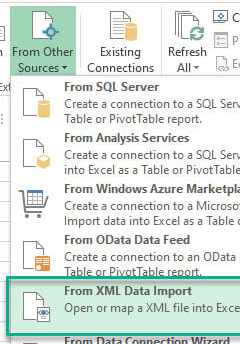
3. Choose From File → From XML Data Import.

NB That older versions of Excel have it in another place

4. Browse for the XML file you want to open.

5. Excel will analyse the XML and prompt you to select an XML map (a schema that defines how the data should be arranged). If no schema is included, Excel tries to work it out itself. In the following example the XML file (Info.xml) has data stored which describes a table called “Product”. Selecting “Product” displays an example of the table output which will load into Excel.

6. The XML data loads into an Excel worksheet, usually in a table format.

Pros:

  • Simple and direct.
  • Works well for small to medium-sized XML files.

Cons:

  • May struggle with deeply nested XML structures.
  • Large XML files can cause Excel to freeze or lose formatting.

Method 2: Saving XML as a Spreadsheet

If your XML data already has a schema, Excel can open it directly like a normal file (NB if it does not have a schema, Excel will try and work out what it is).

Steps:

  1. In Excel, click File → Open.
  2. Select your XML file.
  3. Excel gives you options:
  • As an XML table – recommended for structured data.
  • As a read-only workbook – if you just want to view.
  • Using the XML source task pane – gives more control over how data is imported.

This is useful when XML files come from software exports or government data portals that already provide schemas.

Method 3: Using Power Query in Excel

When loading in data from Method 1, just before loading the data you have the option to “Transform Data”. Selecting this will load the data into Power Query and allow you to manipulate the data and structure before loading it into Excel.

You can also load data directly into Power Query. Just select “Launch Power Query Editor” from the Data Tab and select the “Get Data Option”

From this list select “Launch Power Query Editor…”

When this loads, choose the “New Source” menu option, then “File” and then “XML”. You can now find and load the XML file.

Conclusion

With the above information you should now be able to load an XML file into Excel using one of several different ways.

The contact form requires that you configure reCAPTCHA in the site configuration.

The contact form requires that you select an email template.